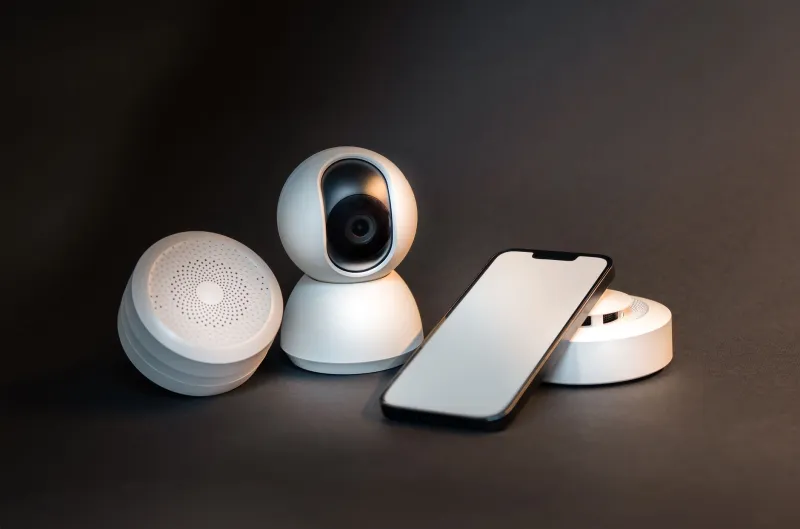
Your Router's 'Smart Band' Feature Might Be Making Your Smart Home Dumber
Photo: RoundupResistance, CC BY-SA 3.0, via Wikimedia Commons
Router manufacturers love to tout "Smart Connect" or "Band Steering" as a set-it-and-forget-it solution to the whole 2.4GHz vs. 5GHz question. The pitch sounds great: your router automatically decides which band each device should use, optimizing for speed and performance without you having to think about it.
In practice, for a smart home full of IoT devices, this feature can be a quiet disaster.
If you've ever had a smart plug randomly go offline, a security camera that drops connection every few days, or a smart thermostat that takes 30 seconds to respond, there's a real chance your router's "smart" band management is the culprit — not the device, not your ISP, and not your internet plan.
Let's break down what's actually happening.
The Real Difference Between 2.4GHz and 5GHz
First, a quick primer without the jargon overload.
2.4GHz is the older frequency band. It travels farther, penetrates walls better, and handles interference more gracefully. The trade-off is that it's slower and more congested — every microwave, baby monitor, Bluetooth device, and neighbor's router is competing in that same frequency space.
5GHz is faster, much less congested, and handles high-bandwidth tasks like video streaming beautifully. The downside: it has shorter range and struggles with solid obstacles like concrete walls or multiple floors.
For most laptops and phones, the router's auto-band feature works reasonably well. These devices are designed to handle band switching gracefully — they have the processing power and firmware sophistication to manage it.
Smart home devices are a completely different story.
Why Smart Devices and Band Steering Don't Mix
Here's the core problem: most smart home devices — smart plugs, bulbs, sensors, older thermostats, budget cameras — are 2.4GHz only. They don't have 5GHz radios. They were never designed for it.
When your router's Band Steering feature is active and broadcasting a single unified SSID (the same network name for both bands), it creates a specific problem for 2.4GHz-only devices. During periods of network congestion or router optimization cycles, the router may attempt to steer devices toward 5GHz. A 2.4GHz-only device can't comply — but the steering attempt can still disrupt the connection, forcing the device to re-authenticate. Depending on the device's firmware, this can look like an outage lasting anywhere from a few seconds to several minutes.
This is why your smart plug seems to "randomly" go offline twice a week with no obvious cause. It's not random. It's your router trying to be helpful.
The Devices That Actually Benefit From 5GHz
Not everything in your smart home should be on 2.4GHz. Some devices genuinely benefit from the faster band:
Security cameras (especially 4K models) — High-resolution cameras generate substantial data streams, particularly when recording locally or uploading to cloud storage. A 4K camera on 2.4GHz is going to struggle. If your camera supports 5GHz, use it — and place it within reasonable range of your router.
Smart TVs and streaming sticks — Your Fire TV, Roku, Apple TV, or smart TV should almost always be on 5GHz if it's within range. These are high-bandwidth devices that benefit enormously from the faster band.
Video doorbells — The Ring Pro, Nest Doorbell (wired), and similar premium models support 5GHz and perform better on it, assuming they're close enough to the router.
Smart displays (Echo Show, Google Nest Hub Max) — These stream video content and benefit from 5GHz when available.
Everything else — Smart plugs, light bulbs, motion sensors, door/window sensors, smart locks, basic thermostats, older cameras — almost universally 2.4GHz only. Don't fight it.
The Case for Splitting Your Network
The most effective fix for all of this is one that sounds like more work than it is: split your 2.4GHz and 5GHz bands into separate network names.
Instead of one SSID called "TotWiFi_Home," you'd have:
- "TotWiFi_Home" → 5GHz only (phones, laptops, tablets, smart TVs)
- "TotWiFi_Home_IoT" → 2.4GHz only (all smart home devices)
This does two things. First, it permanently solves the band steering problem — your smart devices are on a 2.4GHz-only network, so there's nothing to steer them away from. Second, it keeps your high-bandwidth devices on the cleaner, faster 5GHz band without competing with dozens of IoT gadgets.
The setup process varies by router brand, but most modern routers (including Eero, Netgear Orbi, ASUS, and TP-Link Deco) let you do this through their admin interface or app. Search your router model plus "disable band steering" or "split SSID" and you'll find a guide specific to your hardware.
What About WiFi 6 and "Auto" Features?
WiFi 6 routers have introduced more sophisticated band management, and some do handle IoT devices better than older models. But "better" doesn't mean "perfect." Band steering on WiFi 6 routers is still fundamentally trying to optimize for throughput — which is not what a smart plug or a door sensor needs. Those devices need stability and consistent connectivity, not raw speed.
If you've recently upgraded to a WiFi 6 or WiFi 6E router and started experiencing more smart device dropouts than before, the new router's more aggressive band steering is a prime suspect. The fix is the same: split the bands and assign your IoT devices to a dedicated 2.4GHz SSID.
A Quick Device-by-Frequency Reference
Here's a cheat sheet to keep handy when setting up or troubleshooting devices:
| Device Type | Recommended Band |
|---|---|
| Smart plugs & outlets | 2.4GHz |
| Smart light bulbs (WiFi) | 2.4GHz |
| Motion & door sensors | 2.4GHz |
| Basic smart thermostats | 2.4GHz |
| Smart locks (WiFi direct) | 2.4GHz |
| Budget WiFi cameras | 2.4GHz |
| 4K security cameras | 5GHz (if supported) |
| Video doorbells (premium) | 5GHz (if supported) |
| Smart TVs & streamers | 5GHz |
| Smart displays | 5GHz |
| Phones & laptops | 5GHz |
The Takeaway
The 2.4GHz vs. 5GHz debate isn't really a debate — it's a matching problem. The wrong frequency assignment doesn't just slow a device down; it can make it unreliable in ways that are genuinely hard to diagnose if you don't know what to look for.
Your router's automatic band management was designed for households with phones and laptops. A modern smart home with 20, 30, or 40 connected devices is a fundamentally different environment — and it deserves a more deliberate approach. Splitting your bands takes about 15 minutes to set up and could eliminate a whole category of mysterious dropouts and connectivity headaches.
Sometimes the smartest thing a connected home can do is get a little more manual.