Your Router Has a Bouncer and You've Never Used It: The Case for Guest Networks

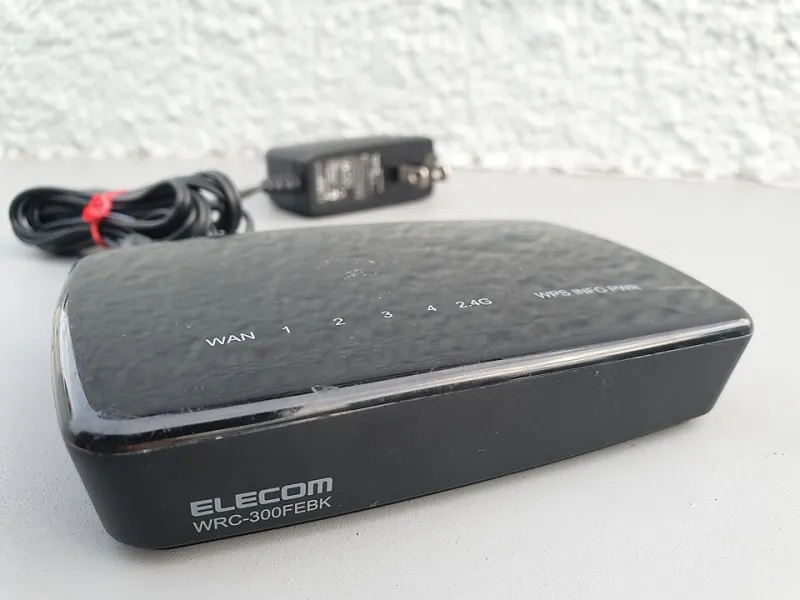
Photo: Anthony Vosper , CC BY-SA 2.0, via Wikimedia Commons
There's a moment that happens at every housewarming party, holiday gathering, and cousin's-overnight-stay in America. Someone holds up their phone and asks, "What's your WiFi password?"
And like clockwork, you recite the same string of characters that unlocks your entire digital life. Your laptop. Your security cameras. Your thermostat. The baby monitor. Your smart TV's logged-in streaming accounts. All of it, suddenly sharing airspace with a device you know nothing about.
Here's the thing: your router already came with a solution, and it's been sitting there unused since the day you plugged it in.
What a Guest Network Actually Does
Think of a guest network as a waiting room attached to your house. Visitors who connect to it can reach the internet — that's it. They can browse, stream, scroll, and doom. But they're walled off from everything else on your home network.
Under the hood, the router creates a second, isolated WiFi network that runs alongside your main one. Devices on the guest side can't see your printer, can't discover your smart bulbs, can't poke at your NAS drive, and can't access the admin panel of anything you own. Most routers accomplish this with a feature called "client isolation," which prevents even guest devices from talking to each other.
The practical upshot: when your neighbor's laptop is crawling with malware, that malware has nowhere to go. It's standing in the waiting room, yelling at a locked door.
Why This Matters More Than You Think
The average American household now runs somewhere north of a dozen connected devices, and plenty of them are things you'd never want a stranger poking at. Security cameras. Smart locks. Voice assistants with access to your calendar and shopping history.
Here's a scenario that plays out constantly: a guest connects to your main network, and their phone automatically starts scanning for and broadcasting to nearby devices — file sharing, AirDrop-style protocols, smart home discovery. Most of the time it's innocent. But every smart device on your network is also a device with a login, a firmware version, and an attack surface. Handing strangers the keys to that hallway is a risk with zero upside for you.
There's also a bandwidth angle. If your brother-in-law starts a 4K cloud gaming session and your teenager's video call starts stuttering, you can throttle the guest network independently on most routers — a pressure-release valve that keeps the peace without any awkward conversations.
The Setup, Brand by Brand
Setting up a guest network takes about ten minutes. Here's the quick version for the most common setups:
TP-Link (Tether app or web interface): Log in, find "Wireless" or "Network," and look for "Guest Network." Toggle it on, give it a name (something like "NotYourNetwork" works), set a password, and — critically — check the box that says "Isolate" or "Allow guests to access my local network: OFF."
Netgear (Nighthawk app): Tap the menu, choose "Guest Network," and create one for each band. Keep the "Allow guests to see each other and access my local resources" option disabled.
ASUS: Log into the router admin page, go to "Wireless" > "General" > "Guest Network," enable it, and set "Access Intranet" to "Disable." ASUS also lets you set time limits, which auto-disconnects guests after a set period — great for one-night visitors.
Eero, Google Nest, and other mesh systems: Open the app, look for "Guest Access," and toggle it on. Most mesh systems generate a separate password you can share or rotate anytime.
Xfinity, Spectrum, and ISP routers: Yes, even the free rental box from your cable company usually has one. Dig into the admin settings (usually 10.0.0.1 or 192.168.1.1) and look for a guest or "secondary" network option.
The 60-Second Checklist
Before your next gathering, run through this:
- Guest network enabled, with a password different from your main one
- Local network access (device isolation) turned OFF for guests
- Guest bandwidth limits set, if your router supports them
- A QR code made for the guest WiFi so nobody types passwords at the door
- A reminder to rotate the guest password occasionally — especially after a party where you shared it with a dozen people
That last one matters more than you'd think. A guest password that hasn't changed since 2022 is effectively public knowledge at this point.
One Network for You, One for Everyone Else
There's no downside here worth mentioning. Setup takes minutes, it's free, it's built into virtually every router sold in the last decade, and it shrinks your smart home's attack surface overnight. The only real cost is admitting that, yes, the router manufacturer thought of something you didn't.
Flip the switch before the next round of holiday guests shows up. Your security cameras — and your sanity — will thank you.