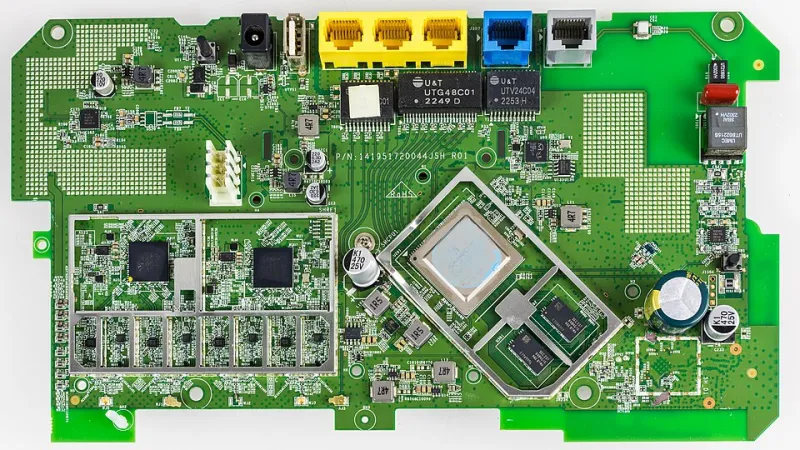
Your Microwave Is Sabotaging Your WiFi — And It's Not Alone
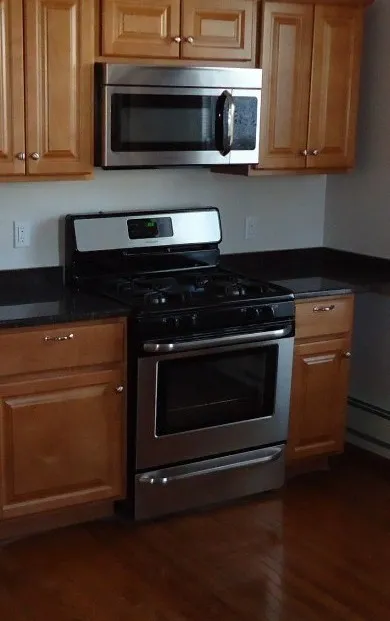
Photo: Tomwsulcer, CC0, via Wikimedia Commons
Everybody blames the walls. Thick drywall, a concrete foundation, a brick fireplace — these are the usual suspects when your WiFi starts acting up. And sure, physical barriers do matter. But if you've ever noticed your video call freezing right when someone starts reheating leftovers, you've stumbled onto something a lot of people miss entirely.
Your home is full of devices that quietly mess with your wireless signal, and most of them have nothing to do with how far you are from the router. Let's talk about what's actually going on — and how you can track down your specific problem without spending a dime on new hardware.
Why 2.4GHz Is a Crowded Neighborhood
Here's the short version of the science: WiFi operates on radio frequencies, primarily 2.4GHz and 5GHz bands. The 2.4GHz band has longer range and better wall penetration, which sounds great — until you realize it's sharing that space with a huge number of other devices.
Microwave ovens are the classic offender. They operate at almost exactly 2.4GHz, and when they're running, they can leak enough electromagnetic energy to drown out nearby WiFi signals. This isn't a defect — it's just physics. The shielding on most consumer microwaves isn't perfect, and even small leakage can cause noticeable interference if your router or your device is close by.
But microwaves aren't alone. Baby monitors, cordless phones (particularly older DECT 6.0 models), Bluetooth speakers, and even some garage door openers all compete in overlapping frequency ranges. Wireless security cameras streaming continuously? Same story. And the more of these devices you add to a modern smart home, the noisier the radio environment gets.
The Smart Home Paradox
Here's the irony: the smarter your home gets, the more potential interference you're introducing. A lot of budget smart plugs, older smart bulbs, and entry-level sensors default to 2.4GHz because it's cheaper to implement and offers better range. That's fine in small numbers. But stack up a couple dozen of these devices in a 1,500-square-foot house and you've created a traffic jam on the same frequency your laptop is trying to use for a Zoom call.
This isn't a reason to ditch smart home gear — it's a reason to understand what you're working with.
How to Actually Find Your Culprits
Before you do anything else, download a free WiFi analyzer app. On Android, WiFi Analyzer (by farproc) is a solid pick. On a Mac, you can use the built-in Wireless Diagnostics tool — hold Option and click the WiFi icon in the menu bar, then select "Open Wireless Diagnostics." Windows users can try NetSpot (free tier available).
What you're looking for is channel congestion. These tools show you which WiFi channels are in use in your area — including your neighbors' networks. If your router is sitting on channel 6 and so are four other networks in range, that's a problem you can actually fix.
Here's a simple diagnostic routine:
- Run a speed test at your router (connected via ethernet if possible) to establish a baseline.
- Run the same test on the device that's giving you trouble.
- Note what's running in the house at that moment — microwave, baby monitor, streaming device, etc.
- Repeat the test after turning those devices off one at a time.
If your speeds jump when you kill a specific device, you've found your culprit.
Fixes That Don't Require a New Router
Switch your router to a less congested channel. Most routers default to auto-select, which isn't always optimal. Log into your router's admin panel (usually 192.168.1.1 or 192.168.0.1) and manually set your 2.4GHz channel to 1, 6, or 11 — these are the only non-overlapping channels on 2.4GHz. Pick whichever one your WiFi analyzer shows as least crowded.
Move your router away from the microwave. Sounds obvious, but a lot of people park their router in the kitchen or near the living room entertainment center — both hotspots for interference. Even moving it six feet can make a meaningful difference.
Push your main devices to 5GHz. Your phone, laptop, and streaming sticks will thank you. The 5GHz band has more available channels, less interference from household devices, and faster throughput. Reserve 2.4GHz for smart home sensors that don't move and don't need speed.
Give your smart home devices their own network. Most modern routers and mesh systems let you create a separate SSID. Putting your smart plugs and bulbs on their own 2.4GHz network keeps that congestion isolated away from your primary devices.
Check your cordless phone. If you still have one, look at the box. If it says DECT 6.0, you're probably fine. If it's an older model operating at 2.4GHz, it might be worth retiring it.
Materials Matter Too — Just Not the Ones You Think
While we're at it: yes, building materials affect signal, but the worst offenders might surprise you. Standard drywall? Barely a problem. Plaster walls with metal lath (common in homes built before the 1950s)? Significant signal blocker. Foil-faced insulation, radiant heat barriers, and even some energy-efficient window coatings can reflect WiFi signals like a mirror.
If you've moved into an older home or a place with a lot of renovation history, it's worth thinking about whether the construction itself is working against you — especially in rooms that seem inexplicably dead no matter where you put a device.
Bottom Line
Your WiFi problems probably have more than one cause, and the fix is rarely just "get a better router." Start by understanding your radio environment, identify what's generating interference, and make targeted adjustments. In most cases, a combination of channel selection, device placement, and smart network segmentation will get you most of the way there — without spending anything extra.