Your Router Knows More About You Than You Think — Here's How to Check and Clear It
You probably don't think much about your router once it's set up and working. It sits in a corner, blinks its little lights, and keeps the household online. But behind the scenes, that unassuming box has been keeping a running log of your digital life — and if you've never looked at it, you might be surprised by what's in there.
This isn't a scare piece. Most of the time, router logs are totally benign, and nobody is actively snooping on them. But if you share your WiFi with family members, roommates, or frequent guests, it's worth understanding what data your router is storing, who could theoretically access it, and how to clear it out when you want a fresh start.
What Exactly Does Your Router Log?
Routers vary a lot by brand and model, but most consumer routers — including popular ones from Netgear, ASUS, TP-Link, Eero, and Google Nest — store some combination of the following:
Connected device history. Your router keeps a record of every device that's ever joined your network, usually identified by MAC address and sometimes by a device name. That includes your smart TV, your Ring doorbell, your kid's iPad, and that one guest's phone from three Thanksgivings ago.
DNS query logs. This is the big one. DNS (Domain Name System) is the process that translates website names into IP addresses. When you type "netflix.com" into a browser, your router sends a DNS request to resolve it. Many routers log these requests, which means they're essentially keeping a list of every domain anyone on your network has attempted to visit.
Traffic patterns and bandwidth usage. Some routers track which devices used the most data, when peak usage occurred, and what types of traffic were flowing through the network. This is less granular than DNS logs but still paints a picture of household habits.
Connection events. Login attempts, device disconnections, and firewall alerts often get logged too. This is actually useful for spotting unauthorized access — but it also means your router has a timestamped record of when devices came and went.
Why This Matters for Shared Households
If you live alone and you're the only one who ever accesses your router's admin panel, this probably isn't keeping you up at night. But a lot of American households are messier than that. Maybe you share WiFi with a partner, a teenager, a roommate, or an in-law. Maybe you've had the same network password for years and half the neighborhood knows it.
The thing is, anyone who can log into your router's admin interface can see those logs. That's usually done through a browser by typing in the router's default gateway address (typically 192.168.1.1 or 192.168.0.1) and entering the admin credentials. If you've never changed the default username and password — and a lot of people haven't — that's a pretty low bar for access.
For families with curious teenagers or nosy roommates, this is worth thinking about. And if you've recently had a guest on your network who you'd rather not have visibility into your household's browsing habits (even indirectly), clearing those logs is a reasonable precaution.
How to Access Your Router's Logs
The exact steps depend on your router, but here's the general process:
-
Find your router's IP address. On a Windows PC, open Command Prompt and type
ipconfig. Look for "Default Gateway." On a Mac, go to System Settings > Network > your connection > Details. The gateway address is your router's admin URL. -
Log into the admin panel. Type that IP address into your browser's address bar. You'll be prompted for a username and password. Check the back of your router for the defaults if you've never changed them — and seriously, change them after this.
-
Find the logs section. This varies by brand. Look for tabs or menu items labeled "Logs," "System Log," "Traffic Monitor," or "Advanced." On ASUS routers, it's often under System Log. TP-Link routers usually have it under Advanced > System Tools > System Log. Netgear typically buries it under Advanced > Administration > Logs.
-
Read through what's there. You might see a wall of timestamped entries. DNS queries will often look like domain names (e.g.,
www.reddit.com,api.spotify.com). Don't panic if it looks like a lot — routers log frequently and the volume can seem overwhelming.
How to Clear Your Router Logs
Once you've taken stock of what's there, clearing it is usually straightforward:
- Most routers have a "Clear" or "Delete All" button somewhere on the logs page. Click it, confirm if prompted, and the log is wiped.
- Some routers reset logs on reboot. If you can't find a clear button, a full router restart may do the trick — though this varies.
- For mesh systems like Eero or Google Nest WiFi, log management is typically handled through the companion app rather than a browser interface. Look in the app's settings under privacy or network history.
A few routers — particularly older or budget models — don't give you an easy way to clear logs through the admin panel. In those cases, a factory reset will do it, though you'll have to reconfigure your network from scratch.
Should You Turn Off Logging Entirely?
This is a judgment call. Router logs can actually be useful — they're one of the first places to look when troubleshooting a slow network, a device that won't connect, or a potential security intrusion. Turning them off completely means flying a little blind if something goes wrong.
A middle-ground approach: keep logging enabled but make it a habit to review and clear your logs every month or two. Think of it like clearing your browser history — a routine bit of digital hygiene rather than a panic response.
If you're running a router with parental controls or network monitoring features (like Circle or built-in ASUS AiProtection), some of that data may be stored separately from the main system log. Check those sections independently if privacy is a priority.
One More Thing: Your ISP Is Also Keeping Logs
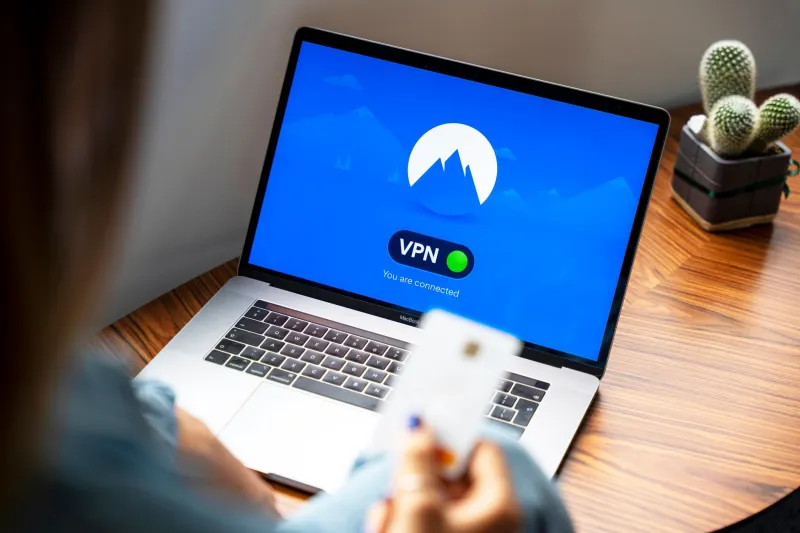
It's worth knowing that clearing your router logs doesn't erase the record your Internet Service Provider maintains. Comcast, AT&T, Verizon, and other major US ISPs retain some level of traffic data on their end — the specifics depend on their privacy policies and applicable law. If that concerns you, a VPN at the router level (some routers support this natively) is a more comprehensive solution, though it comes with its own tradeoffs in speed and complexity.
For most households, though, the router audit is the right first step. It's your network, your data, and your call how much of a paper trail it keeps.