Three Generations, One Router: Surviving the WiFi Chaos of a Multi-Gen Household

Multi-generational living is having a serious moment in the US. Whether it's aging parents moving in, adult kids boomeranging back home, or extended families pooling resources under one roof, more American households are blending generations than at any point in recent memory. And with each generation comes their own stack of connected devices — smart TVs, security cameras, gaming consoles, voice assistants, medical monitors, and yes, even the occasional internet-connected refrigerator.
The problem? Your router doesn't care about family harmony. It just sees a flood of devices fighting for bandwidth, and when things go sideways, it's usually at the worst possible moment — right when someone's on a work call, someone else is mid-raid in a video game, and Grandma's trying to FaceTime her book club.
Let's talk about how to actually fix this.
Why Multi-Gen Households Hit Different (Technically Speaking)
When two or three households merge under one roof, you're not just adding people — you're adding entire device ecosystems. Your parents might have a Ring doorbell, a Nest thermostat, and a Roku TV. Grandma might have a medical alert device, a tablet she uses for video calls, and that smart fridge her kids bought her last Christmas. Your teenagers have gaming PCs, wireless headsets, and three different streaming subscriptions running simultaneously.
Each of those devices has different bandwidth needs, different wireless standards it supports, and different sensitivity to network congestion. A 4K stream needs consistent throughput. A gaming setup needs low latency. A video call needs both. A smart fridge mostly just needs to exist on the network without breaking everything else.
The issue isn't usually that you don't have enough internet — it's that everything is competing on the same network with no traffic management in place.
Step One: Take Inventory Before You Touch Anything
Before you start reconfiguring anything, spend 20 minutes doing a full device audit. Log into your router's admin panel (usually accessible by typing 192.168.1.1 or 192.168.0.1 into your browser) and look at the connected device list. You'll probably be surprised — and maybe a little horrified — by how many things are on there.
Write down or screenshot the list. Categorize devices roughly by who they belong to and what they do. This gives you a working map of your network before you start making changes, and it'll save you a lot of "wait, why did the thermostat stop working" moments later.
Separate Networks, Separate Drama
One of the best things you can do in a multi-gen household is stop treating your WiFi like a single communal pool. Most modern routers — and virtually all mesh systems — let you create multiple network SSIDs (basically separate WiFi networks) running off the same hardware.
Here's a setup that works well for a lot of families:
- Main network: For high-priority devices. Work laptops, gaming setups, anyone doing video calls or streaming 4K content.
- IoT/smart home network: For devices that just need to be connected but don't need speed. Smart bulbs, thermostats, security cameras, voice assistants, smart appliances.
- Guest network: For visiting family, Grandma's tablet if she's only staying temporarily, or anyone whose devices you don't fully trust.
This isn't just about speed — it's also about security. Keeping smart devices on their own isolated network means that if one of them gets compromised, it can't easily reach your work laptop or your family's personal data.
The Bandwidth Conversation Nobody Wants to Have
Here's the part where technology becomes a family dynamics problem. When Dad's Zoom call drops because someone started a 4K download, fingers start pointing. And in a multi-gen household, those fingers can point in a lot of uncomfortable directions.
The solution is to have the bandwidth conversation before there's a problem, not during one. A few ground rules that work for a lot of households:
Set quiet hours for heavy downloads. Large game updates, system backups, and bulk photo syncing should ideally happen overnight, not at 6 PM when everyone is home.
Use QoS settings on your router. Quality of Service (QoS) lets you tell your router which devices or types of traffic get priority. Most modern routers have this built in, and it can be a genuine lifesaver. Prioritize video conferencing and gaming over background syncing and smart appliance check-ins.
Have a shared calendar for bandwidth-heavy activities. It sounds old-school, but even a shared Google Calendar where people mark when they're doing something that'll hammer the network — a big download, a movie night, a work presentation — can prevent a lot of friction.
When Grandma's Devices Are the Culprit
This is a sensitive one, but it's real. Older devices — and older people tend to have older devices — often run on 2.4GHz WiFi only, use outdated network protocols, and sometimes have firmware that hasn't been updated in years. They can cause congestion on the 2.4GHz band and, in rare cases, create security vulnerabilities.
The fix isn't to kick Grandma's fridge off the network. It's to make sure her devices are on the IoT network (where they can't interfere with your main traffic), that firmware is updated where possible, and that you've got a router that handles 2.4GHz and 5GHz traffic separately.
If her medical alert device or tablet needs to stay on the main network for reliability reasons, that's fine — just make sure it's not competing with high-bandwidth activities by using QoS to give it a stable but modest priority.
Hardware Worth Considering
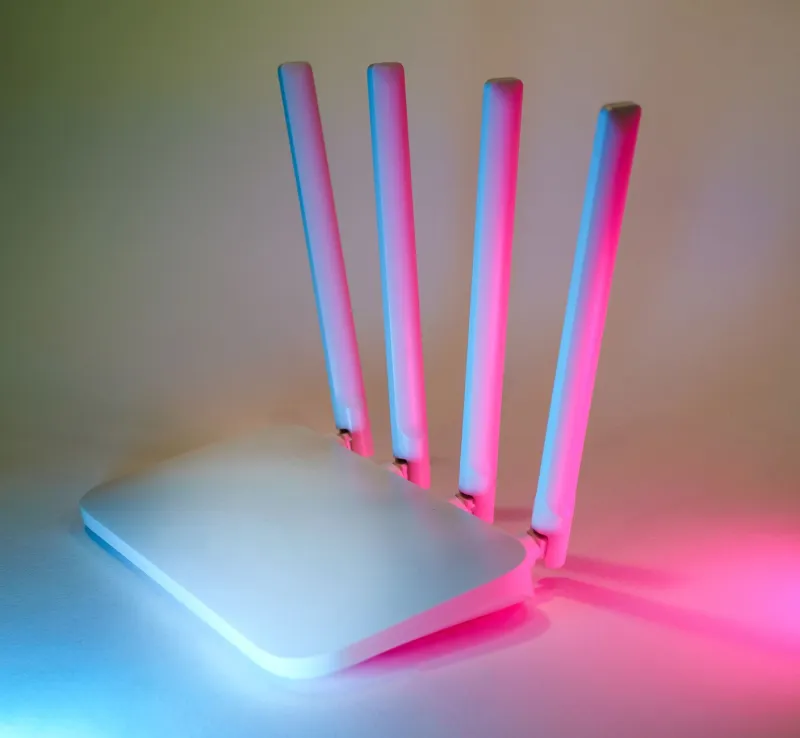
If you're running a multi-gen household on a single mid-range router you bought five years ago, it's probably time for an upgrade. A few options worth looking at:
Mesh systems like the Eero Pro or Google Nest WiFi Pro are worth considering if your home is large or has dead zones. They also tend to have better app-based controls for managing multiple networks and device priorities.
Routers with strong QoS and parental controls — like the ASUS ZenWiFi or the Netgear Orbi — give you more granular control over who gets what, which is genuinely useful when you've got three generations of users with wildly different needs.
You don't necessarily need WiFi 7 or the most expensive hardware on the market. What you need is a router that can handle device count, supports multiple SSIDs, and gives you decent traffic management tools.
Keeping the Peace Long-Term
The technical fixes are the easy part, honestly. The harder part is maintaining a shared understanding of how the network works and who's responsible for what. In a multi-gen household, that means a few things:
- One person should own the router admin credentials — ideally someone comfortable with tech who can troubleshoot when things go sideways.
- Everyone should know the network names and passwords for the networks they're supposed to be on — not just "the WiFi password."
- Have a go-to troubleshooting step that everyone agrees to try first before declaring a network emergency. (Usually: restart your device, then restart the router.)
Multi-generational living is complicated enough without your smart home adding to the chaos. A little upfront planning — and the right hardware — goes a long way toward making sure the WiFi doesn't become the thing that makes family dinners awkward.